
I know it’s been a while since I have posted anything new. I would like to say thank you to everyone who has communicated how my previous blogs and research has helped during your examinations. Those chats have meant a lot to me and provide additional motivation to do more, so thanks!
This will be an update to Local Photo Library (LPL) Photos.sqlite decoding as the result of a DFIR Discord community member question. As the blog title hints, the research being updated is related to what the data might look like within LPL Photos.sqlite when an iPhone, and possibly other Apple devices, are used to transfer data to another iPhone, or Apple device, during a new device set-up.
The artifacts discussed within this blog, like many other digital forensic artifacts, are only pieces to a larger puzzle. Data discovered during a digital forensic examination and analysis should be used in conjunction with other investigative leads to build the puzzle. Any data uncovered during this process can aid investigators in identifying additional devices related to the investigation and ask deeper investigative questions.
During this research, I was able to replicate what was observed in the case data within test devices data after one test. Due to what was required to set up the test devices, I was only able to test this twice with the same devices. I would like to remind everyone if this data is critical for your investigation, please take the time to mimic these steps and conduct additional testing.
Forensics Questions:
A community member asked the following set of questions based on the data observed in some case data and requested some help determining the following:
Question #1:
Why are there files being stored at the following file paths:
- */mobile/Media/PhotoData/metadata/DCIM/100APPLE/IMG_1111.JPG
- */mobile/Media/PhotoData/Thumbnails/V2/DCIM/100Apple/IMG_1111.HEIC/5005.jpg
Question #2:
Why isn’t IMG_1111.HEIC being stored at:
- */mobile/Media/DCIM/100APPLE/
Answer to Question 1 and 2 is related to Optimized iPhone Storage setting and process:
These were questions that I am very familiar with. I have observed these types of files being stored within these locations and missing the full-sized file several times in the past. I have found this situation is typically related to the optimizing iPhone storage setting. I informed the examiner to review my previous blog, “Do you have a Full-Sized Asset…or just a Thumbnail? Did Optimized iPhone Storage process occur?” which should provide insight why the full-size file (IMG_1111.HEIC) was not being stored in the expected file location (*/DCIM/100APPLE/IMG_1111.HEIC).
For this reason, I will be focusing on the following questions during this research and testing.
Question #3:
Why does the Photos.sqlite data contain indicators that the file (IMG_0026.MOV) was captured with an iPhone 7, which was not the iPhone seized and analyzed, while also indicating the file (IMG_0026.MOV) is a Local Photo Library (LPL) Asset versus Cloud Photo Library (CPL) Asset?
Question #4:
Is there data that can be used show correlation between the iPhone 7 (capturing device) and the iPhone X (analyzed device)?
The examiner was looking for artifacts that could indicate the file (IMG_0026.MOV) was captured with a device related to the seized and examined device (iPhone X). Additionally, they were in search of data which might indicate both devices (iPhone 7 and iPhone X) were using the same Apple ID.
NOTE: The file names and devices have been changed out of respect for the examiner and because of the testing devices used during the research.
These questions might be a little confusing to follow at the moment. I will do my best to explain why these were great questions.
Research & Testing:
The examiner asking the questions provided me the LPL Photos.sqlite and other related files. While reviewing, (the examiner provided LPL Photos.sqlite data), I noticed almost immediately the data was not consistent with what I have observed previously during my research and testing. I was very curious about the actions required to reproduce the data observed within the examiner provided Photos.sqlite. At the conclusion of the research and testing, the actions taken during my tests resulted with data that matched the data the examiner provided.
Test Devices:
In an effort to help others follow along how I worked through the questions; I will be using the data from two test devices. These test devices are different models and iOS versions then the original questioned devices, but this does not appear to have a significant impact on the results.
Old iPhone – device used to set-up the new or subsequent iPhone:
- Device: Apple iPhone 7 (A1660)
- iOS: 15.1 (19B74)
- Apple ID: dext************47@email.com
- Acquisition: Cellebrite UFED 4PC Advance Logical (Encrypted)
- UDID: 11d93*********************cb6ce
New iPhone – device set-up via “Transferring Data” and iTunes backup from the iPhone 7
- Device: Apple iPhone X (A1865)
- iOS: 16.7.5 (20H307)
- Apple ID: dext************47@email.com
- Acquisition: Cellebrite UFED 4PC Advance Logical (Encrypted)
- UDID: cf958**********************8bd7af
Questioned File:
The questioned file (*/mobile/Media/DCIM/100APPLE/IMG_0026.MOV) was discovered within the iPhone X and was determined to be critical evidence to the case. To learn more about the file (IMG_0026.MOV) we will review the data stored in the local Photos.sqlite database. As a reminder, this is the location of the Local Photo Library Photos.sqlite:
- */mobile/Media/PhotoData/Photos.sqlite
The Photos.sqlite query I used during the analysis was iOS16_LPL_Phsql_IntResou-iCldPhotos.txt which can be found on GitHub. I will discuss the data stored in the database and how it can be used during the analysis.
Commercial Forensic Tools:
Before we start going down the rabbit hole, let’s review what most of us might encounter when using some of the common commercial forensic tools when reviewing this media file, IMG_0026.MOV. Keep in mind that we are reviewing data from a Cellebrite UFED 4PC Advance Logical acquisition.
Cellebrite Inseyets Physical Analyzer 10.0.100.93:
The first tool we will review is Cellebrite Inseyets powered by Physical Analyzer 10.0.100.93. Using the all projects search, I was able to use the file name “IMG_0026.MOV” to locate two files related to the file name. One of the files was a thumbnail and the other file was the full-size file in the */DCIM/100APPLE/ location.
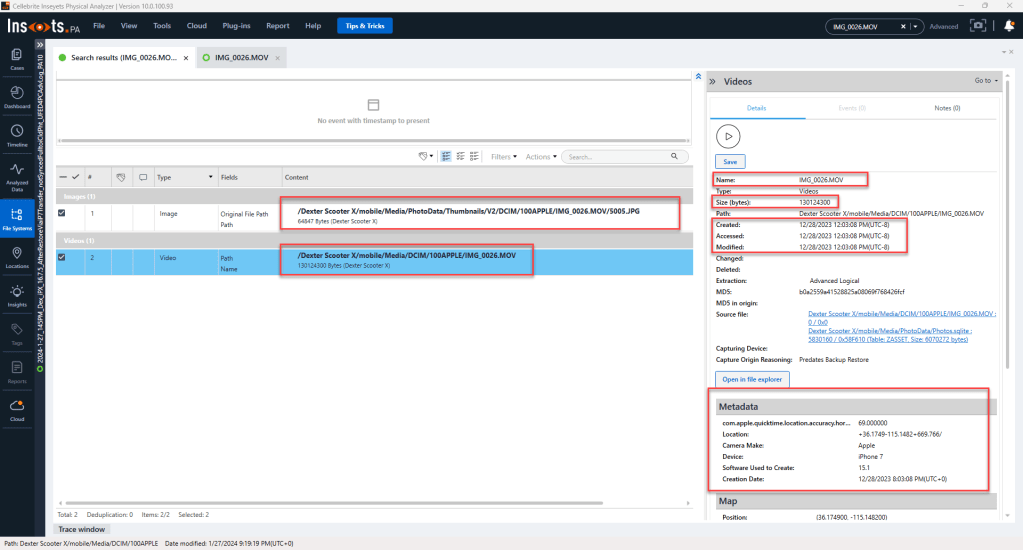
Within the tool we can review some great information such as the file name, file size, file path, source file, date created, and others. Notice the Media Origin data enrichment indicates “Capture Origin Reasoning: Predates Backup Restore.” This data is correct. This file was captured prior to the analyzed device being set-up and restored. Remember, we are analyzing an iPhone X and the file was originally captured with an iPhone 7. Please make note of the “Software Used to Create” the asset/media file is “15.1.” If you look back at the Test Devices section, we can see the iPhone 7 was using 15.1 (19B74). This will be discussed again later in the blog and will be important data to analyze when determining a connection between the iPhone X and the iPhone 7.
Oxygen Detective 16.1.0.200:
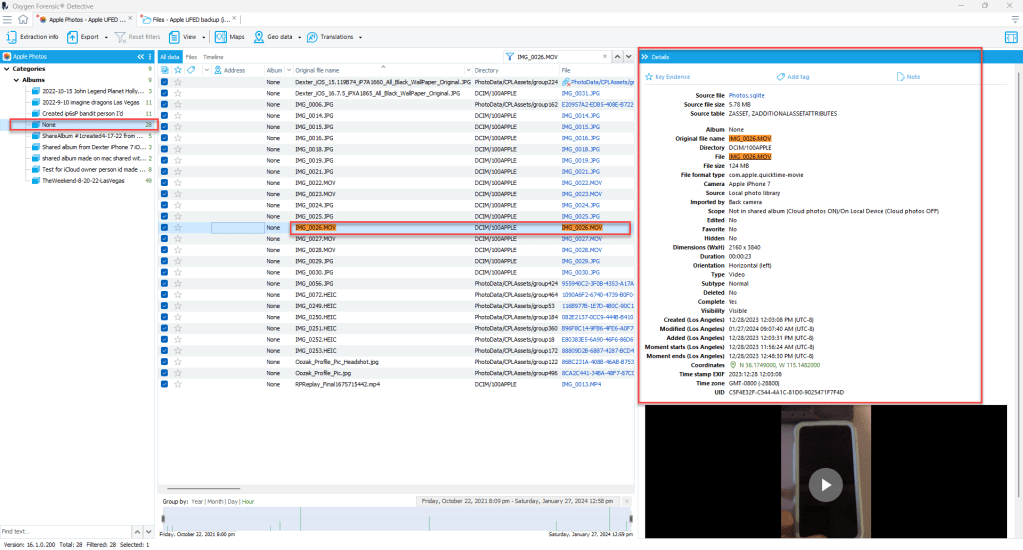
Using Oxygen Forensic Detective 16.1.0.200, within the Files category we can search for the file name “IMG_0026.MOV” and we will only get one result. But if we change the settings to include the file path, we will locate two files as seen in the below screenshot. One of the files was a thumbnail and the other file was the full-size file in the DCIM/100APPLE location.

If we use Oxygen and search for the file via the Apple Photos artifact, we can see that Oxygen decodes and parses some of the Photos.sqlite data from the ZASSETS and ZADDITIONALASSETSATTRIBUTES tables.
Magnet AXIOM 7.9.1.38948:
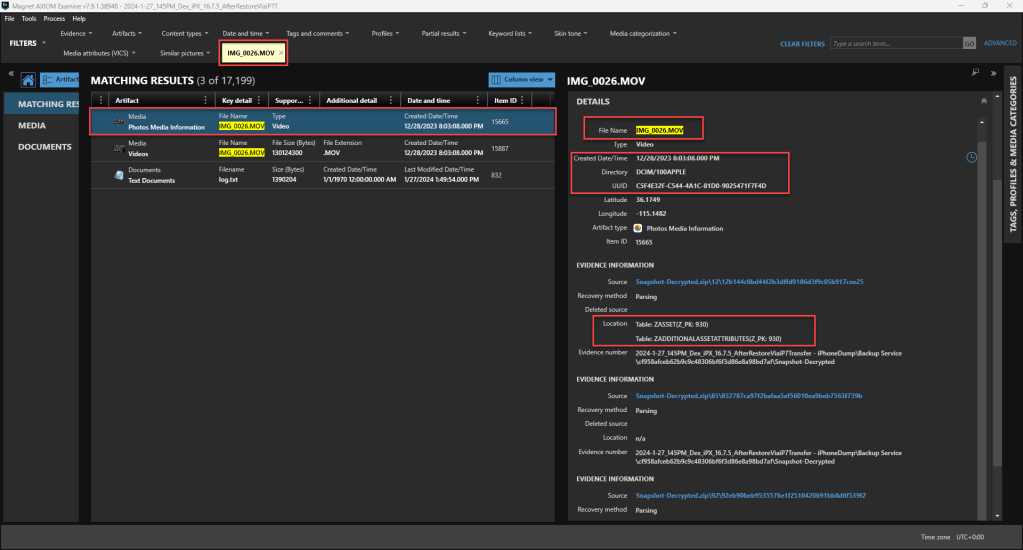
Using Magnet AXIOM 7.9.1.38948, we can see that have three types of artifacts displayed based on a simple search for the asset file name, IMG_0026.MOV. The media file (IMG_0026.MOV), artifact information called “Photos Media Information,” and a text document, but notice the thumbnail we observed in the other forensics tools is not shown in the results. In order to show all of the possible related files, we would need to revise our search to IMG_0026. This would allow is to find all of the related files. The media file should not require any additional description. The Photos Media Information is data parsed from the LPL Photos.sqlite. You should notice the primary keys/row ids being used to join the tables and parse the corresponding data. The text file is a file produced as the result of the acquisition method. This is another example why it is important to understand how our forensic tools function.

Understanding the Data Parsed by Commercial Tools:
We can see within the commercial tool screenshots that they do a great job parsing the critical information about target media file. Some of the data that I would like to highlight is the following:
- EXIF Create Date is listed in all three tools as 12/28/2023 at 8:03:08 PM
- Some of the tools convert the EXIF date and time based on the tools UTC offset setting and some do not
- How can we determine the proper UTC Offset for when the media file was captured?
- We can use the location coordinates
- We can analyze the LPL Photos.sqlite
- Other Created Date and Time listed in all three tools as 12/28/2023 at 8:03:08 PM (UTC-0)
- Does this mean that this file was created on the analyzed device (iPhone X) on this date and time?
- That would have been Impossible!
- The analyzed device was an iPhone X and the EXIF states it was captured with an iPhone 7.
- In the real-world case, the iPhone X was not purchased or set-up yet.
- This is a situation where the target of the investigation could deny that neither they nor their device could have captured the media file because they did not own the iPhone X when the questioned media file was “created” on that device.
- Does this mean that this file was created on the analyzed device (iPhone X) on this date and time?
How do we establish, with a high level of confidence, the questioned media file was captured with a device related to the investigation target?
After reviewing the parsed data for the media files within these commercial forensic tools, do you think we could articulate this file was captured with a device (iPhone 7), then transferred to the iPhone X during device set-up/restore?
LPL Photos.sqlite File Analysis:
There are multiple tools that can be used when analyzing SQLite databases, but one of my favorite tools is Artifact Examiner (ArtEx) built and published by Ian Whiffin at doubleblak forensics.
The first step in my analysis is to isolate the data for the questioned file (IMG_0026.MOV). As I stated previously, I used the iOS16_LPL_Phsql_IntResou-iCldPhotos.txt query. The query can be used within ArtEx and we can see the query results. Within the results, I navigated to the query output and highlighted the following data:
| Table | Column / Field | Data in the Field / Column |
| ZASSET | ZFILENAME | IMG_0026.MOV |
| ZADDITIONALASSETATTRIBUTES | ZORIGINALFILENAME | IMG_0026.MOV |
| ZCLOUDMASTER | ZORIGINALFILENAME | IMG_0026.MOV |
| ZASSET | ZDIRECTORY | DCIM/100APPLE |
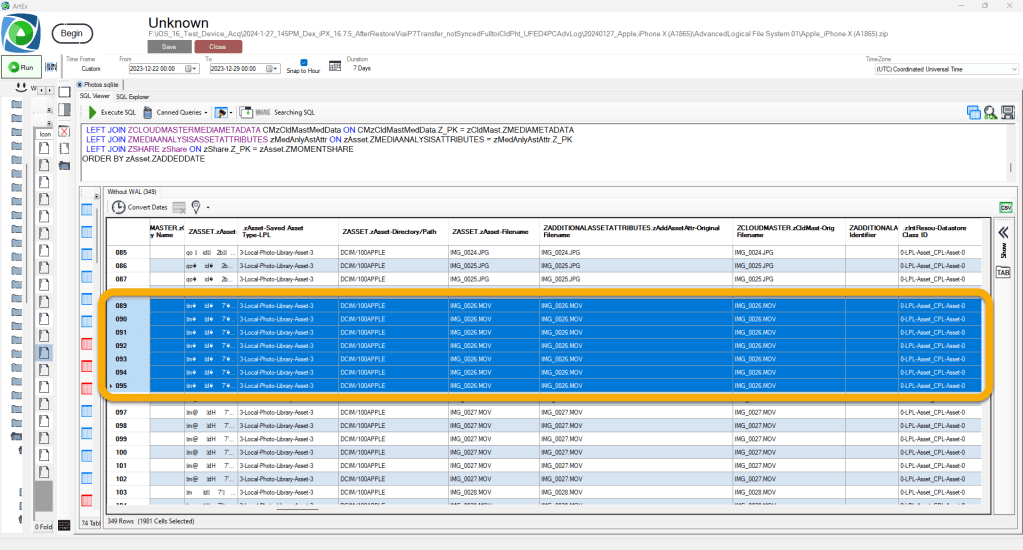
Now that we have identified the records related to the questioned file (IMG_0026.MOV), we need to use the query output to learn the ROW ID / Primary Key to isolate the questioned file. This will allow us to eliminate the unnecessary data. Using the ZASSET table Z_PK integer for the questioned file (930), we can add a WHERE statement to the SQLite query to eliminate the unnecessary data.
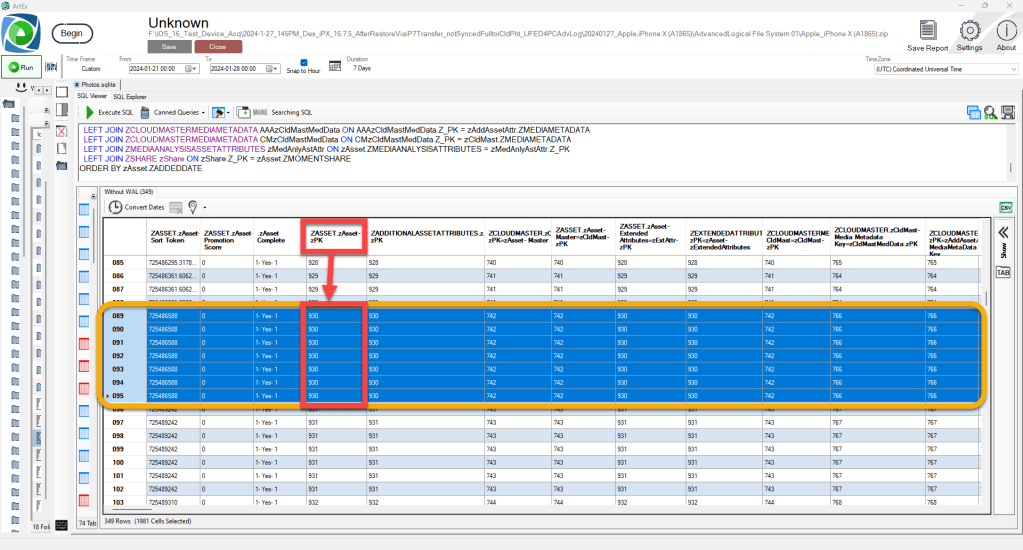

If you are asking yourself “why are there so many entries listed for the one file (IMG_0026.MOV)?” Please take some time and review the blog mentioned previously about optimized iPhone storage.
The next set of fields we are going to analyze will provide indicators if iCloud Photos is being utilized and if the file is visible on the analyzed device.
| Table | Column / Field | Data in the Field / Column |
| ZASSET | ZBUNDLESCOPE | iCldPhotos-ON=Not-In-Shared-Album_iCldPhotos-OFF=On-Local-Device-0 |
| ZASSET | ZCLOUDLOCALSTATE | iCldPhotos-ON=Asset_Can-Be-or-Has-Been_Synced_with_iCloud-1 |
| ZASSET | ZVISIBILITYSTATE | Visible-Photo-Library-0 |

You will notice in the data above and within the screenshots, I have included the raw data with my interpretation of the raw value. Given that iCloud Photos is being used on the analyzed device (iPhone X), we can infer the analyzed asset is not in an iCloud Photos Shared Album, it can be or has been synced with iCloud Photos, and the asset is visible within the Photo Library / Camera Roll on the analyzed device.
The next set of fields that we are going to analyze will provide of the make, model, camera, and how the file was imported into the local photo library and the iCloud Photo Library.
| Table | Column / Field | Data in the Field / Column |
| ZEXTENDEDATTRIBUTES | ZCAMERAMAKE | Apple |
| ZEXTENDEDATTRIBUTES | ZCAMERAMODEL | iPhone 7 |
| ZASSET | ZDERIVEDCAMERACAPTUREDEVICE | 0- Back-Camera/Other-0 |
| ZADDITIONALASSETATTRIBUTES | ZCAMERACAPTUREDEVICE | 0- Back-Camera/Other-0 |
| ZADDITIONALASSETATTRIBUTES | ZIMPORTEDBY | 1-Native-Back-Camera-1 |
| ZCLOUDMASTER | ZIMPORTEDBY | 1-Native-Back-Camera-1 |

After reviewing the above data, we can infer the analyzed asset was captured with an Apple iPhone 7 with the back camera. This data is consistent with what we would expect to see when the analyzed device was used to capture a media file / asset.
I have been asked several times by community members and you might be asking yourself why I used the term captured versus the term created. Over the years, I have reviewed hundreds of records within Photos.sqlite and like other artifacts we analyze in digital forensics. If we review available data, we should be able to make some inferences and draw a conclusion if a media file was captured or created with a device. When discussing files and asset records found within Photos.sqlite I don’t recall if I have discussed these terms and how I use the terms within my blogs and research:
- Captured: the act of recording in a permanent file
- I use the term captured to indicate when the device camera was used to record and save a file/asset within the device storage.
- Created: to produce or bring about by a course of action or behavior
- I use the term created to indicate when the device operating system, applications, and or user actions occur to save a file/asset within the device storage.
A great example of this would be what occurs when a Live Photo is captured. When a Live Photo is captured, there are two files that are captured (a still photograph and a video). Additionally, there are other files created as the result to include, thumbnails and other files that are related to the captured media files.
Using the above data, along with my experience with analyzing the data within iOS Photos.sqlite, I can confidently state the asset (IMG_0026.MOV) was captured with the iPhone 7 back camera.
In conjunction with the data listed above, we can again deduce even more conclusions about the asset based on the data below. We have already observed data indicating the media file (IMG_0026.MOV) was captured with the iPhone 7 back camera, but we should still have some unanswered questions like; Was the media file captured with the Apple iOS Native Camera Application or a third-party application?
Unfortunately, in this situation, we have some analysis limitations because we did not have the capturing device (iPhone 7) to analyze. Typically, if we had the capturing device to analyze we could review data stored in power logs, SEGB files, KnowledgeC, unified/sysdiagnose logs and others that might indicate which application was used on the date and time of the capture. But in this instance, we do not have that kind of data to analyze.
| Table | Column / Field | Data in the Field / Column |
| ZADDITIONALASSETATTRIBUTES | ZIMPORTEDBYBUNDLEIDENTIFIER | NULL |
| ZADDITIONALASSETATTRIBUTES | ZIMPORTEDBYDISPLAYNAME | NULL |
| ZCLOUDMASTER | ZIMPORTEDBYBUNDLEIDENTIFIER | NULL |
| ZCLOUDMASTER | ZIMPORTEDBYDISPLAYNAME | NULL |

NOTE: Here is a link to read more about a NULL value within SQLite, but based on what I have observed when working with Photos.sqlite and as an easy to understand definition, a NULL value can be summarized as a field that does not contain data related to the record or is simply not applicable to the record. Within my queries posted to GitHub, fields that contain a NULL value will appear blank or empty in the query output.
Fields for records not containing data indicate the asset was imported into the Local Photo Library or the Cloud Photo Library. What does that mean? Based on my testing and research, if an asset is captured with the native Apple iOS Camera Application these fields will contain a NULL value. If the asset was captured/imported into the Local Photo Library or the Cloud Photo Library, via other methods these fields will contain data which would indicate the application that was used to capture/import the asset into the corresponding library.
Examples: If a device user captures or imports media while using the Apple Messages Camera application, these fields will contain data indicating such application was used. If the device user captures or imports media using the Snapchat application, these fields will contain data indicating the application was used. Knowing that information and knowing that during this analysis we can see these fields are NULL, is an indicator the asset being analyzed was captured using the Apple Native Camera Application.
As we continue the analyze the data stored in Photos.sqlite for the questioned asset, IMG_0026.MOV, the next few fields provide greater insight if the asset was saved or imported from an outside source or third-party application.
| Table | Column / Field | Data in the Field / Column |
| ZASSET | ZSAVEDASSETTYPE | 3-Local-Photo-Library-Asset-3 |
| ZASSET | ZDIRECTORY | DCIM/100APPLE |
| ZASSET | ZFILENAME | IMG_0026.MOV |
| ZADDITIONALASSETATTRIBUTES | ZORIGINALFILENAME | IMG_0026.MOV |
| ZCLOUDMASTER | ZORIGINALFILENAME | IMG_0026.MOV |
| ZINTERNALRESOURCE | ZDATASTORECLASSID | 0-LPL-Asset_CPL-Asset-0 |
| ZASSET | ZCLOUDPLACEHOLDERKIND | 0-Local&CloudMaster Asset-0 |
| ZINTERNALRESOURCE | ZLOCALAVAILABILITY | 1-IR_Asset_Avail_Locally-1 |
| ZINTERNALRESOURCE | ZCLOUDLOCALSTATE | 3-IR_Asset_Synced_iCloud-3 |

As we review the above data, we can see there are several indicators that the analyzed asset is a part of the local photo library, being stored locally in the DCIM file path, and the most important indicators in this group of data is all of the file names are the same. The original file name matches the asset file name. In most instances when an asset is captured, is imported, or originates from a third-party application it will have an original file name that does not match the asset file name.
While we review this portion of the query output, you will start to notice more ZINTERNALRESOURCE table data. This data is one of the reasons there are multiple records for one captured video (IMG_0026.MOV). I will not be going into detail about this table and data as its outlined in previous blogs.
The next set of fields will provide some data that can be used to compare the asset we reviewed in the commercial forensic tools to what we are finding within Photos.sqlite.
| Table | Column / Field | Data in the Field / Column |
| ZINTERNALRESOURCE | ZVERSION | 0- IR_Asset_Standard- 0 |
| ZADDITIONALASSETATTRIBUTES | ZORIGINALFILESIZE | 130124300 |
| ZINTERNALRESOURCE | ZRESOURCETYPE | 1- Video- 1 |
| ZINTERNALRESOURCE | ZDATASTORESUBTYPE | 1- Main- Asset- Orig- Size- 1 |
| ZINTERNALRESOURCE | ZCLOUDSOURCETYPE | 0- NA- 0 |
| ZINTERNALRESOURCE | ZDATALENGTH | 130124300 |
| ZINTERNALRESOURCE | ZRECIPEID | OrigFileSize_match_DataLength_or_Optimized |
| ZINTERNALRESOURCE | ZCLOUDLASTPREFETCHDATE | 0- NA- 0 |
| ZINTERNALRESOURCE | ZCLOUDPREFETCHCOUNT | 0 |

The record highlighted in blue, is the data for the “main / full-sized asset.” We can observe evidence of this by analyzing the additional asset attributes table original file size which matches the internal resource data length and the other internal resource table fields which indicates main / original asset. The following are some highlights about the data we can review for the “main” asset versus some of the data for the other records. The main asset is a video with a file size of 130124300 which matches the data from the commercial tools. There is indication that a 5005 file might be available as indicated by the Cloud Last Prefetch Date (2024-1-27 17:04:31 UTC-0). In the screenshots from the commercial tools, we can see that there is a 5005 file being stored on the analyzed device related to the IMG_0026.MOV.
Next, and maybe the most important data I analyze when reviewing the Photos.sqlite records, is the date and time fields within the database.
| Table | Column / Field | Data in the Field / Column |
| ZASSET | ZADDEDDATE | 2023-12-28 20:03:31 |
| ZADDITIONALASSETATTRIBUTES | ZDATECREATEDSOURCE | 1- Local_Asset_EXIF- 1 |
| ZASSET | ZDATECREATED | 2023-12-28 20:03:08 |
| ZCLOUDMASTER | ZCREATIONDATE | 2023-12-28 20:03:08 |
| ZINTERNALRESOURCE | ZCLOUDMASTERDATECREATED | 2023-12-28 20:03:08 |
| ZADDITIONALASSETATTRIBUTES | ZTIMEZONENAME | GMT-0800 |
| ZADDITIONALASSETATTRIBUTES | ZEXIFTIMESTAMPSTRING | 2023:12:28 12:03:08 |
| ZASSET | ZMODIFICATIONDATE | 2024-01-27 17:07:40 |
| ZCLOUDMASTER | ZCLOUDLOCALSTATE | 3- Synced with Cloud- 3 |
| ZCLOUDMASTER | ZIMPORTDATE | 2023-12-28 20:03:31 |

As we can see most of the timestamps match. This is an indication that we should have some reliable data being stored in these records. The first timestamp I normally analyze is the ZEXIFTIMESTAMPSTRING. We can see this timestamp has a slightly different format as the digits are separated by colon (:). This timestamp raw data type is a text string versus the other timestamps which are integers. This timestamp is also stored in local time as determined via the device that captured the media file. The other timestamps are listed in UTC-0. We are required to analyze the time zone name and other fields to ensure we are interpreting the timestamps correctly. We can also observe the Date Created Source is a local EXIF asset.
Using this timestamp information let’s review the dates and times in chronological order and events that occurred for this asset:
- 2023:12:28 12:03:08 (UTC-8) the media file (IMG_0026.MOV) capture began
- 2023:12:28 12:03:08 (UTC-8) the media file records were created for both the local photo library (zAsset.DateCreated) and the cloud photo library (zCldMast.CreationDate)
- This is a fairly good indication the capturing device might have been connected to a network when it was captured.
- The video captured is approximately 23 seconds in length. This can be viewed within the Photos.sqlite ZASSET ZVIDEODURATION field which indicates the exact duration as 22.865 seconds.
- 2023:12:28 12:03:31 (UTC-8), approximately 23 seconds after the creation time and at the conclusion of the capture, the asset is added to the Local Photo Library (ZASSET ZADDDATE) and the asset was imported into the Cloud Photo Library (ZCLOUDMASTER ZIMPORTDATE). The ZCLOUDMASTER ZCLOUDLOCALSTATE provides indication the asset has been synced with iCloud Photo Library.
At this point of the analysis, we have reviewed several pieces of data in Photos.sqlite. Based on past analysis of other iPhones, media files, and their corresponding Photos.sqlite records, the data appears to indicate the analyzed media file (IMG_0026.MOV) was captured by the analyzed device (iPhone X). But we know via the analysis the EXIF and metadata indicates the capturing Camera Make and Model was an iPhone 7.
This was the point of the analysis where I was very curious about how the data in Photos.sqlite became populated.
The indicators we typically find with an asset that has been synced via the iCloud Photos sync service were not present. Typically, media files captured with a device then synced to iCloud Photos and other apple devices using the same Apple ID several fields within Photos.sqlite would indicate the asset was synced from iCloud Photos, but during this analysis, it appears as if the iPhone X captured with file (IMG_0026.MOV).
How could this occur?
Before we move on with the analysis, I would like to show you the Photos.sqlite data for the IMG_0026.MOV that was captured with the iPhone 7 compared to the IMG_0032.MOV that was captured with the iPhone X a month later. There are very few differences in the records for these two files that were captured with two different devices almost a month apart.

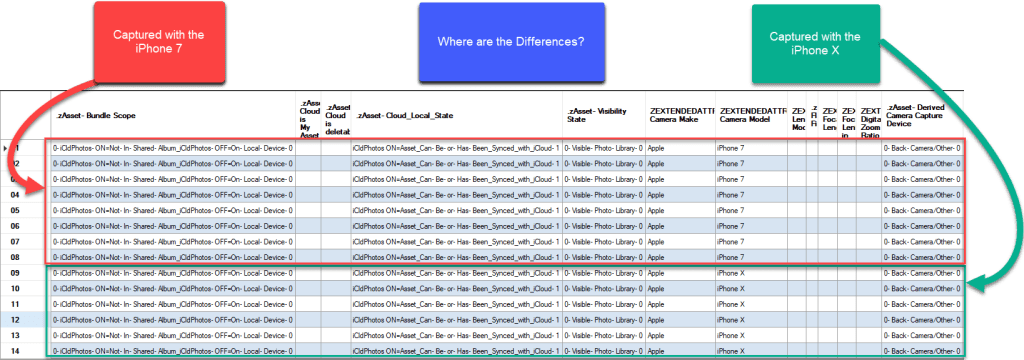


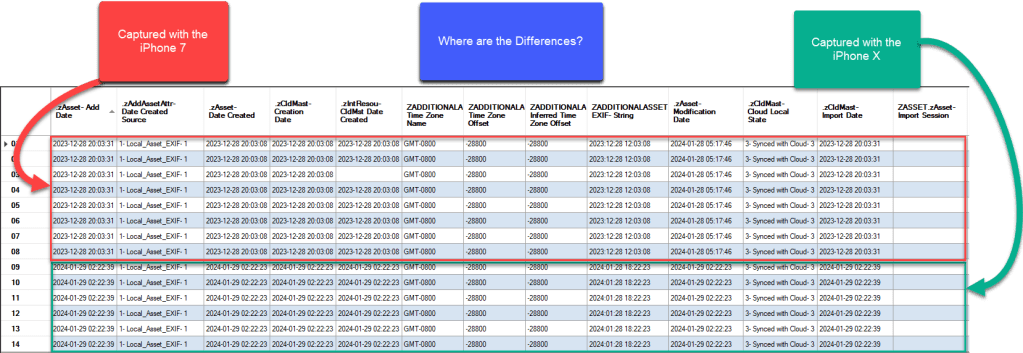
Photos.sqlite ZMIGRATIONHISTORY Table Analysis:
In a previous blog I discussed how the LPL Photos.sqlite ZMIGRATIONHISTORY table could provide insight into when a device may have been set-up and when the iOS version might have been updated. During this research I revisited this table and reanalyzed it. Using the SQLite query published on my GitHub, iOS16_LPL_Phsql_MigrationHistory.txt, we can analyze the data in the table.
We can observe there are two records in the query result. The first record indicates the following:
- Migration Date: 2022-09-16 23:24:33 (UTC-0)
- In this testing scenario this date predates when the iPhone X was purchased or set-up by the user. This data in conjunction with other data we have analyzed and will be analyzing can provide indicators the analyzed device (iPhone X) contains data directly transferred from the set-up device (iPhone 7).
- Source Model Version: NULL / Blank
- Model Version: 15323
- OS Version: 19B74
- Build and Version: 19B74 iOS 15.1
- Origin: 2 – based on limited testing indicates the migration origin is unknown
The second record indicates the following:
- Migration Date: 2024-01-27 17:04:25 (UTC-0)
- This is the date and time the migration began, which was after the data was transferred from the iPhone 7 to the iPhone X. More about this date and time will be discussed during the next section.
- Source Model Version: 15323
- Model Version: 16502
- OS Version: 20H307
- Build and Version: 20H307 16.7.5
- Origin: 3 – based on limited testing indicates the migration origin is another device

This is additional data that we can analyze that might allow us to put more and more puzzle pieces together to illustrate what occurred with a device.
Apple Quick Start Transferring Data To and From a Device during Set-up:
What other artifacts can we review to gain insights into how IMG_0026.MOV made it from the iPhone 7 to the iPhone X?
After discussing possible scenarios with the examiner who sent the initial questions, I theorized that the file could have been transferred from the iPhone 7 when the iPhone X was set-up. I attempted to test it a few times with different devices. But I was not able to replicate the results we observed in the real life examined device because the test devices continued to use iCloud backups and iCloud Photos sync service as a method of getting set-up.
On Saturday, January 27, 2024, at approximately 9:00 AM (UTC-8) I used the iPhone 7 which was using an Apple ID of dext************47@email.com to set-up the new iPhone X. As a reminder here are the test device details:
Old iPhone – device used to set-up the new/2nd iPhone:
- Device: Apple iPhone 7 (A1660)
- iOS: 15.1 (19B74)
- Apple ID: dext************47@email.com
- Acquisition: Cellebrite UFED 4PC Advance Logical (Encrypted)
- UDID: 11d93*********************cb6ce
New iPhone – device set-up via “Transferring Data” and iTunes backup from the iPhone 7
- Device: Apple iPhone X (A1865)
- iOS: 16.7.5 (20H307)
- Apple ID: dext************47@email.com
- Acquisition: Cellebrite UFED 4PC Advance Logical (Encrypted)
- UDID: cf958**********************8bd7af
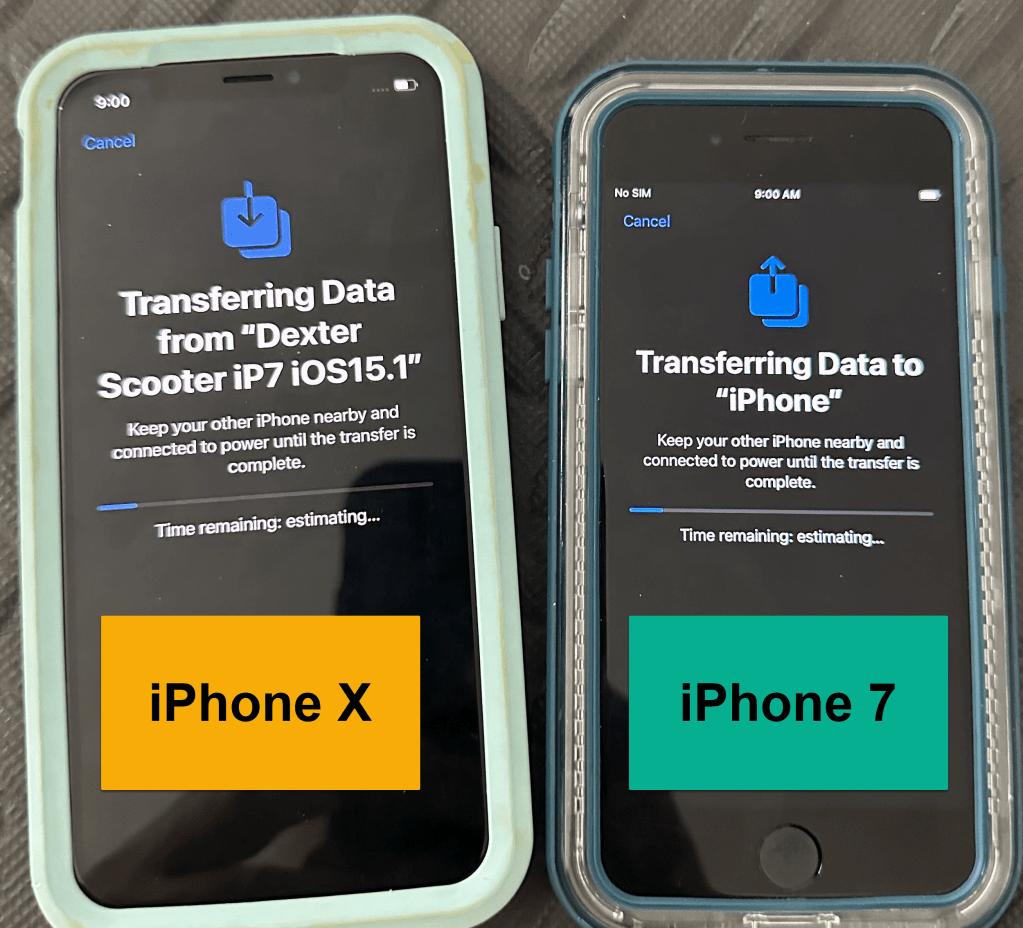
During the Quick Start set-up, I was able to trigger the set-up process of transferring data directly from one device to another. I was not able to capture the entire process during the first attempt, but have put some photos together into a video and it has been attached below.
During the video, notice files were being transferred at approximately 9:00 AM (UTC-8). Then at approximately 9:07 AM (UTC-8) the iPhone X begins syncing with iCloud Photos.
This is a second video that was made during a second test. This video depicts some of the actions required to set-up a device using the Quick Start File Transfer method.
Device Set-up, Transfer, and Restore Artifacts:
As many of us are aware there have been several articles, blogs, webinars, and other help documents that have been published to help us with locating artifacts/data that would assist us with determining if and when an iPhone may have been factory reset and set-up.
2019-1: https://smarterforensics.com/2019/01/how-was-an-iphone-set-up/
2019-3: https://dfir.pubpub.org/pub/2q177smo/release/5
2019-5: https://www.rapidr.nl/wp-content/uploads/2019/05/iOS_Bug_Reporting_for_Forensic_Purposes_1.2.pdf
2020-12: https://cellebrite.com/en/upgrade-from-null-detecting-ios-wipe-artifacts/
2021-1: https://athenaforensics.co.uk/how-to-identify-when-an-iphone-or-ipad-was-factory-reset/
2021-6: https://blog.d204n6.com/2021/06/ios-tracking-device-migration.html
com.apple.purplebuddy.plist:
Within these postings and other documents, there are repeated mentions of com.apple.purplebuddy.plist. This property list can be found at: */mobile/Library/Preferences/com.apple.purplebuddy.plist.
When we review the purplebuddy.plist we can see there are a few different dates:
- GuessedCountry:
- 12/28/2023 2:00:13 AM (UTC-0) or 12/27/2023 6:00:13 PM (UTC-8)
- lastPrepareLaunchSentinel:
- 1/27/2024 5:04:35 PM (UTC-0) or 1/27/2024 9:04:35 AM (UTC-8)
- Set-upLastExit:
- 1/27/2024 5:03:41 PM (UTC-0) or 1/27/2024 9:03:41 AM (UTC-8)
Do any of these dates indicate when I set-up the iPhone X? They are all correct. As discussed in the other blogs and writeups, the guessed country was selected on 12/28/2023, but I did not complete the set-up process at that time. This is one of the reasons I and others have advised to use caution when using this date when referencing a factory reset or set-up. I continued and completed the set-up process on 1/27/2024 using the iPhone 7.
Does purplebuddy.plist contain any data that might help with indicating the iPhone X was set-up using another device? Yes, it did, SetupState indicated RestoredFromDevice. We can also see that there is mention of productVersion 15.1. This was the iOS version the iPhone 7 was using at the time the iPhone X was set-up, but there is not a lot of other data that we can use to draw a definitive conclusion solely based on the data in the plist.
In the following screenshots we can see the plist as decoded via ArtEx and Cellebrite PA:

com.apple.MobileBackup.plist:
Another property list that has been mentioned in some of the above blogs and writeups is:
- */Library/Preferences/com.apple.MobileBackup.plist
During the analysis, I found this property list was very useful and it contained lots of insightful data when attempting to determine which device might have been used to set-up the iPhone X.
iPhone X acquisition made 1/27/2024 at 1:45 PM (UTC-8):
After the iPhone X was set up, multiple advance logical acquisitions were made spanning over a few days. The first acquisition was performed on 1/27/2024 at 1:45 PM (UTC-8). The following is a screenshot of the com.apple.MobileBackup.plist via ArtEx for the iPhone X shortly after the device was set-up.
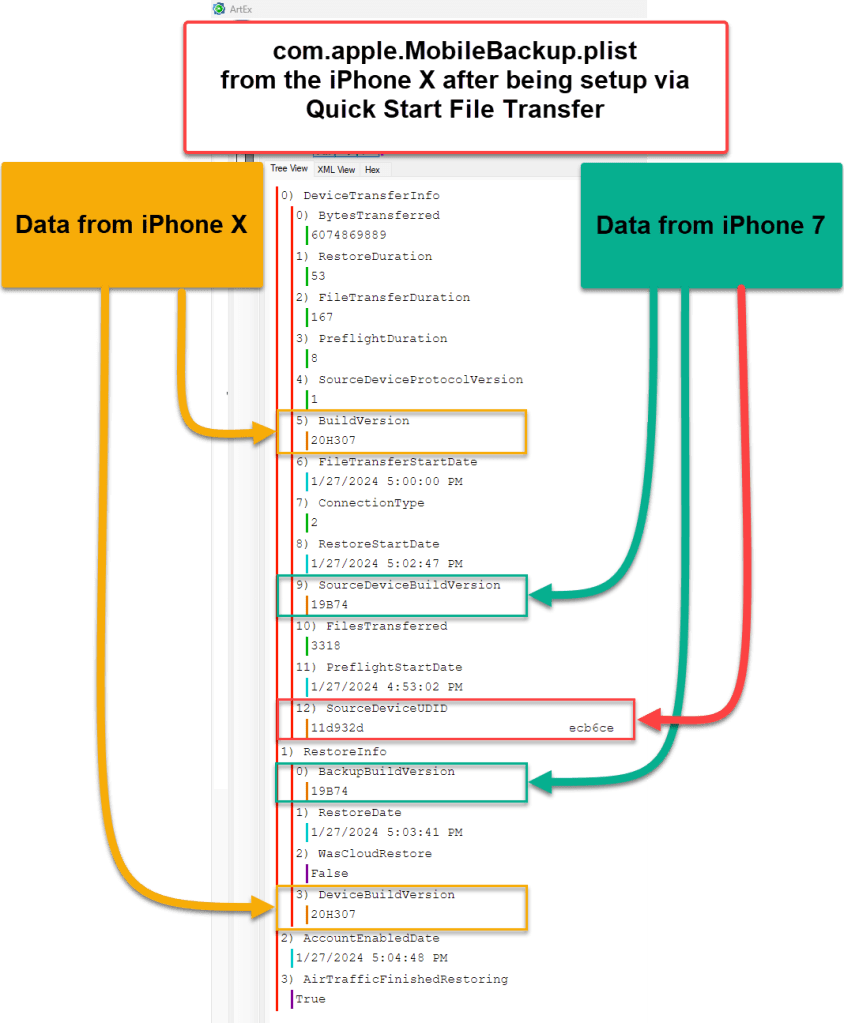
This plist contains some critical data for analysis to derive what might have occurred during the set-up process. The plist contains the software version of the device that was used to set-up the iPhone X. It also contains the UDID for the iPhone 7, which was used to set-up the iPhone X. This could be very critical to determine if the previous device (iPhone 7) and the newly set-up device (iPhone X) belonged to the same person/Apple ID.
This plist stores the software version installed on the device that was being set-up (iPhone X).
Notice the FileTransferStartDate 1/27/2024 5:00:00 PM (UTC-0) or 1/27/2024 9:00:00 AM (UTC-8). This was the time the data started transferring from the iPhone 7 to the iPhone X. See the below photo that was captured during the set-up process.
iPhone X acquisition made 1/27/2024 at 9:12 PM (UTC-8):
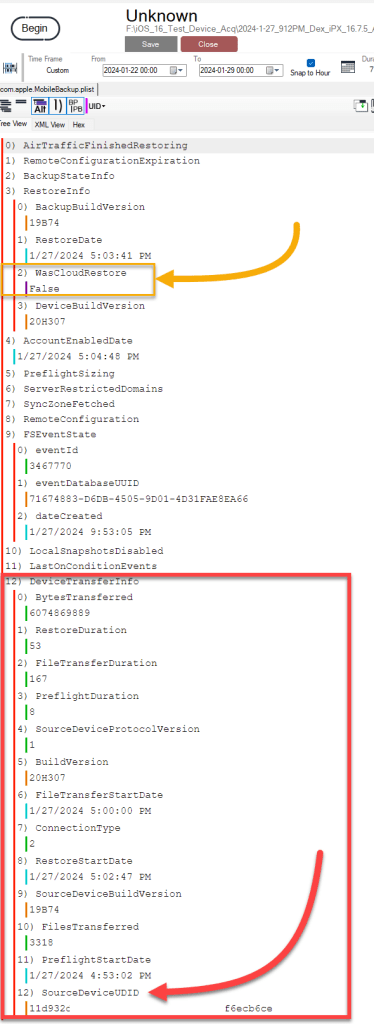
The following is a screenshot of the com.apple.MobileBackup.plist via ArtEx for the iPhone X a few hours after the device was set-up. This version of the plist has more fields of data. The original DeviceTrransferInfo is still present, but there is much, much, more!
One of the additional fields we can see within this plist is WasCloudRestore which indicates False. This with the other fields listed under RestoreInfo provide data we can analyze to understand how the device was set-up and how the data was transferred to the newly set-up device.
Source Device UDID:
Because I believed this UDID was a critical piece of data that could show correlation between the questioned media file, the device that may have captured the media file, and how the questioned media file was transferred from the iPhone 7 to the iPhone X, I believed it was necessary to validate this data.
Let’s take a look at the UDID for the analyzed device (iPhone X):

Now, lets take a peek into the iPhone 7 UDID:
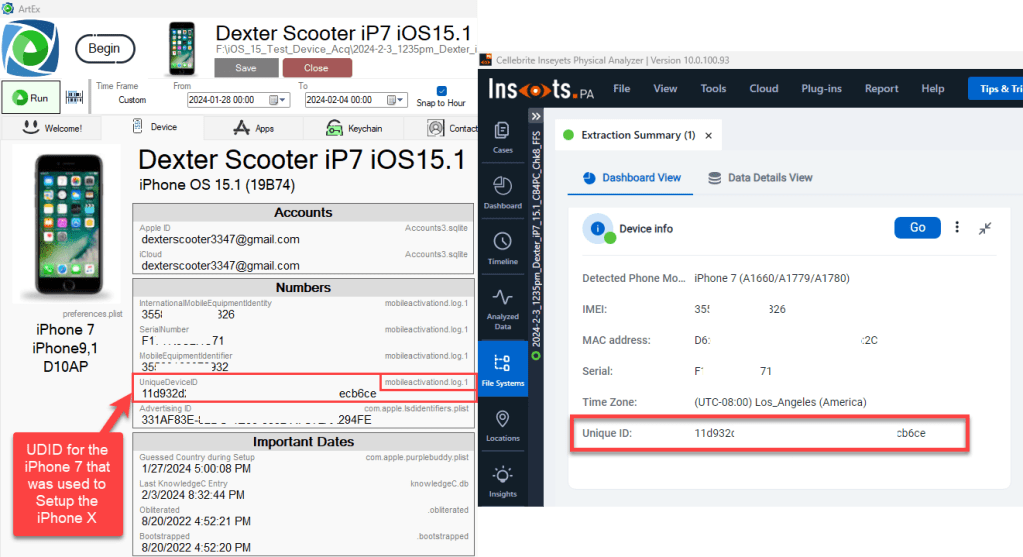
We can quickly see the devices have different UDIDs and the UDID we have seen in the com.apple.MobileBackup.plist belongs to the iPhone 7 that was used to set-up the iPhone X.
Apple Developer states the following about an Apple UDID:
“A device ID is a UDID that uniquely identifies an Apple device including a Mac computer.”
Wikipedia states the following about an Apple UDID:
“Apple mostly uses this ID to identify the device on their services, such as Apple ID and iCloud. This also holds the Find My Activation Lock status. Starting from iOS 11, Apple’s verification server will check the device’s UDID before it could be set up. If the device’s UDID is malformed or not present in Apple’s database, the device cannot be activated and will be denied access to the verification server. If said device is connected to iTunes, an error message will appear stating that the iPhone could not be activated because the activation information could not be obtained from the device.”
Investigation Impact based on the data:
Now that we know that we have a device unique identifier (UDID) for a device that we may or may not have in our possession, what can we do with this information?
- Check with the investigators to ensure they have not seized a device that has not be submitted for examination and analysis
- We can use this UDID to articulate the need for additional search warrants to locate the original device we believe, with a high level of confidence, was responsible for capturing the suspicious/questioned media file(s).
- Request additional device information from Apple via legal process.
Conclusion:
What does this mean for a forensic examiner?
Based on the case data reviewed and the two tests I performed, I believe we can use the data to show, with a high level of confidence, the following:
We can analyze the com.apple.MobileBackup.plist for indicators of the following:
- Was data transferred directly from a device to the analyzed device during set-up;
- DeviceTransferInfo
- When did the file transfer start;
- FileTransferStartDate
- Build version (iOS version) of the device used to set-up the analyzed device;
- SourceDeviceBuildVersion
- UDID for the device used to set-up the analyzed device;
- SourceDeviceUDID
- Build version (iOS version) of the analyzed device at the time of the transfer;
- BuildVersion
Knowing how a device records and stores data when the device was set-up via data transferred versus being restored from an iCloud Backup could allow us to conduct a detailed analysis of media files.
Having that knowledge, we can analyze the data stored in the Local Photo Library Photos.sqlite and derive intelligent conclusions based upon that data. Using information learned during the investigation and the data from Photos.sqlite, we can analyze the data to determine the likelihood a media file with EXIF or metadata indicating it was captured with a device other than the analyzed device, may have been captured with a related device or possibly even the same user of the analyzed device.
Tools Used:
Cellebrite UFED 4PC 7.68.0.809
Artifact Examiner (ArtEx) 2.2.8.0.4 and 2.2.8.0.6
Cellebrite Inseyets Physical Analyzer 10.0.100.93
Magnet AXIOM 7.9.1.38948
Oxygen Detective 16.1.0.200
RabbitHole 2.2.5.0
DCode 5.1
DB Browser 3.12.2
HxD 2.5.0.0
Future Considerations:
Given the steps required to test this process, I was limited on the number of times I could perform these tests. This research was also limited due to the limited number of devices I could use. Many of my test devices are using particular iOS versions and performing factory resets on them raises the risk of them being updated. Given this fact, I was not able to set-up newer devices or different devices using different iOS versions to compare the results.
I believe additional testing of different devices using different iOS versions should be performed to gain additional confidence this research is reliable.
UDID Validation:
This is a subsection withing this research. I wanted to take some extra time and effort to validate the UDID found with the iPhone 7 data. During different acquisition types of the iPhone 7 the UDID could be found with the following files:
- Manifest.plist – Cellebrite UFED 4PC Advance Logical
- Info.plist – Cellebrite UFED 4PC Advance Logical
- PhoneInfo.xml – Cellebrite UFED 4PC Advance Logical
- device_values.plist – Cellebrite UFED 4PC Advance Logical
- AccountToken.txt – Cellebrite UFED 4PC Checkma8 Full File System
and
- mobileactivationd.log.1 – Cellebrite UFED 4PC Checkma8 Full File System
I am familiar with most of these files, but I was not aware of the mobileactivationd.log.1 file. The UDID was being parsed from the file within ArtEx. Even though the data was parsed within a tool, I wanted to validate the value. Using multiple tools, I located the file being stored at the following location:
- private\var\mobile\Library\Logs\mobileactivationd\mobileactivationd.log.1
I exported the file and viewed it within a hex tool and different text viewing tools. While reviewing the data, I observed a record which indicated UniqueDeviceCertificate. The data appeared to be Base64 encoded.

As we continue down the rabbit hole, we find more data that appears to be Base64 encoded. I highlighted the data and decoded it using RabbitHole:

Reviewing this portion of the data provided another field with more Base64 encoded data. After decoding it we can start to review some of the data:

Using RabbitHole we can view this data as text and it allows us to read some of the data, which includes the UDID. It should be noted some of the data has been redacted.

 The Forensic Scooter
a new blogpost and a good long read too, I’m already loving it. I was about to post a ” thanks for all the good and extensive work” in regard to the speeds in the locationd/cache.sqlite database, when I ” stumbled” over this brand new one. So thanks on this one…and all the other ones. You make the difference.
LikeLiked by 1 person
Thanks Mark happy they are able to help.
LikeLike